Audio Meets Video: Converting MP3 to MP4 for Sharing and Archiving
Why and how to wrap an MP3 in an MP4 container: keeping audio quality, picking a cover image or waveform, adding metadata and archiving safely.
- Published
- Journey
- 2 min
- Covered here
- 5 sections
- Route
- Tech
Covered here
- Container versus content
- Who benefits from the switch
- A simple workflow
- Designing the picture
- Thinking about the archive
A voice memo of a grandparent telling a family story, a choir's concert recording, a weekly podcast episode: all of these live comfortably as MP3 files until someone wants to post them on a platform built for video. That is the moment the question comes up of how to give sound a picture without making it sound any worse.
Container versus content
It helps to separate two ideas. MP3 describes how the audio itself is compressed. MP4 is a container, a box that can hold a video track, one or more audio tracks, subtitles, chapter markers and descriptive tags. Turning one into the other mostly means placing the existing sound into that box and adding a visual track alongside it. Ideally the audio is copied across untouched, or encoded once at a generous bitrate, because every extra round of lossy compression can chip away at clarity.
Who benefits from the switch
- Podcasters who want episodes or clips on video-first platforms where audio-only uploads are not accepted.
- Teachers and trainers sharing recorded lectures through a learning system that expects video files.
- Musicians and ensembles releasing a track with its cover art so it displays properly in feeds.
- Families preserving recordings in a format that plays on almost any television, phone or laptop.
A simple workflow
- Start from the best version of the audio you have, not a copy that has already been forwarded and recompressed through messaging apps.
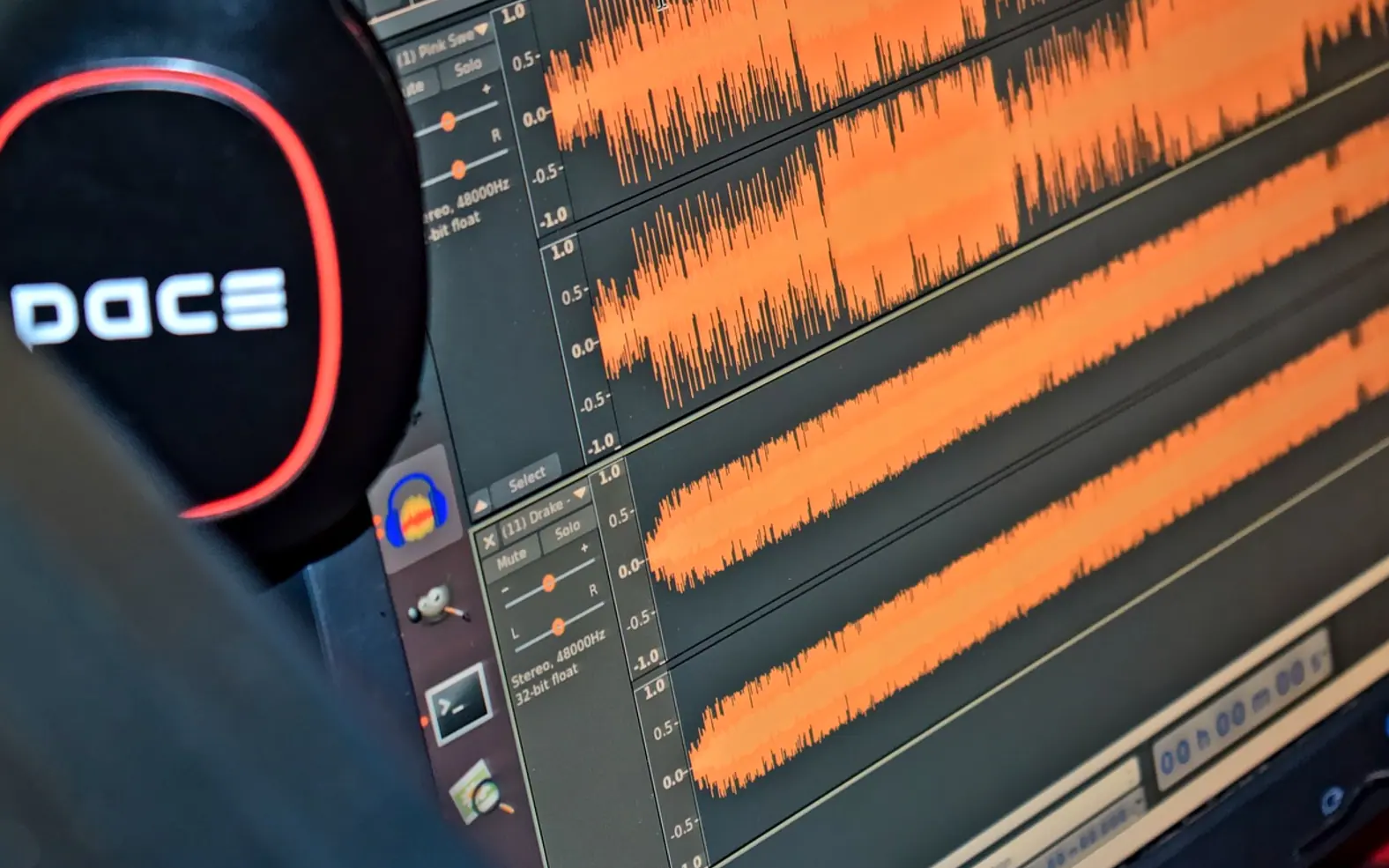
- Pick a visual. A still cover image is light and calm; an animated waveform signals that something is playing; a slow background loop suits music better than speech.
- Use a converter that keeps the audio settings high. Browser-based tools are handy for occasional jobs, and a page that lets you convert MP3 to MP4 with an image attached is often all a one-off project needs.
- Play the result on the device your audience is most likely to use and listen for any change in tone or volume.
Designing the picture
The image should support the listening rather than compete with it. Keep text large and away from the edges, since platforms crop thumbnails differently on phones and desktops. High contrast reads better on small screens. For spoken content, a still frame showing the title and speaker usually works better than motion, which can pull attention away from what is being said. Exporting square and vertical versions as well is worthwhile if the file will travel to social apps.
Thinking about the archive
For anything meant to last, fill in the metadata: title, date, the people involved, location and a short description. Chapter markers make long recordings easier to navigate years later. Keep the original MP3, or better still an uncompressed master if one exists, next to the MP4, and store both in more than one place. The video copy is convenient for sharing; the original remains the safest source if formats or platforms change down the line.
Spotted a mistake?
A short note is enough.